

IDE Overview
Overview
Section titled “Overview”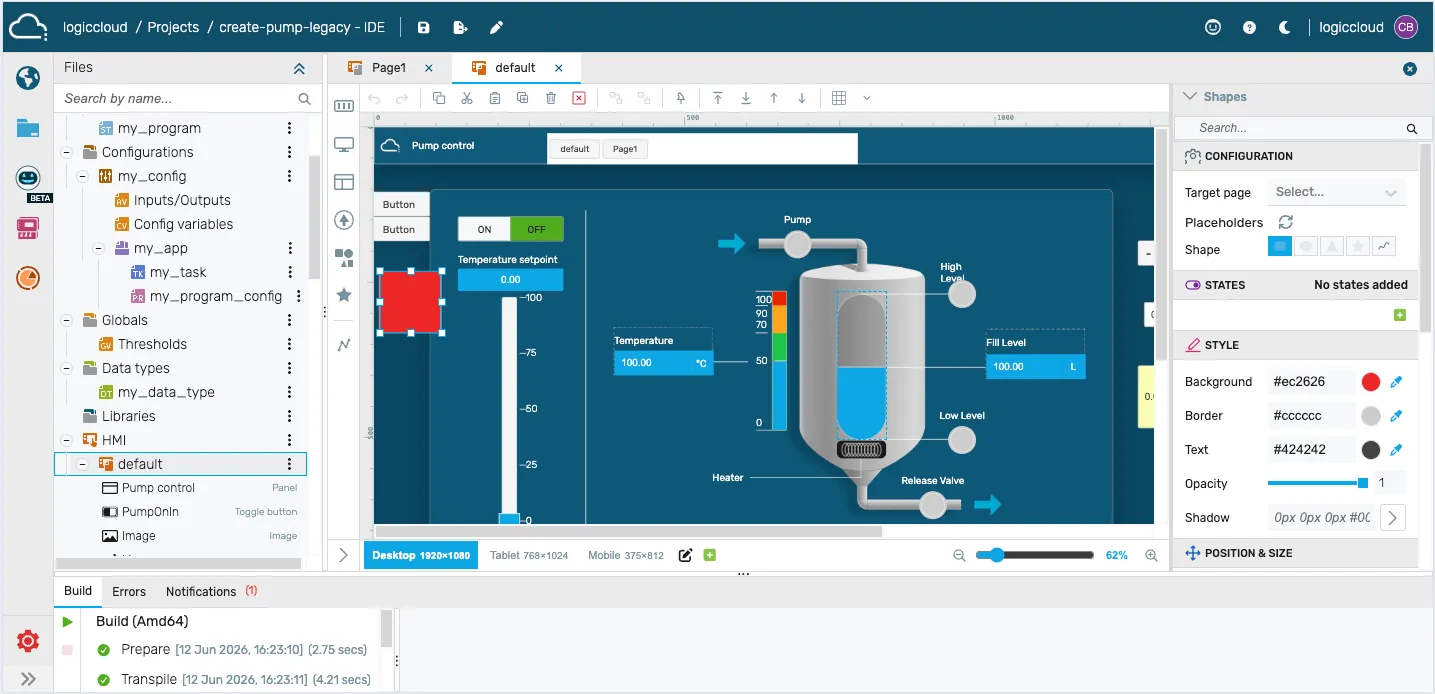
The IDE is where you develop your Structured Text programs and HMI visualizations. It consists of the project tree on the left, the editor/HMI canvas in the center, component configuration on the right, and the build output at the bottom.
Project tree
Section titled “Project tree”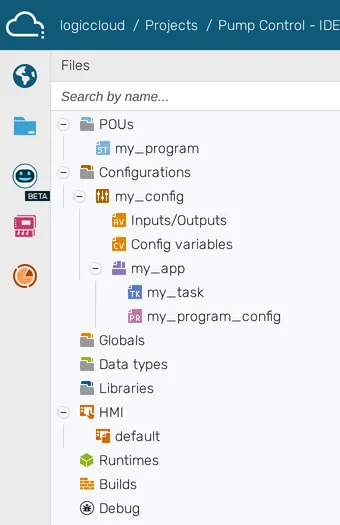
The project tree contains all files and configurations of the project. You can move the elements using drag & drop. To add or edit elements or folders, move the mouse over the existing elements and click on the corresponding icons.
Variable declaration and program code
Section titled “Variable declaration and program code”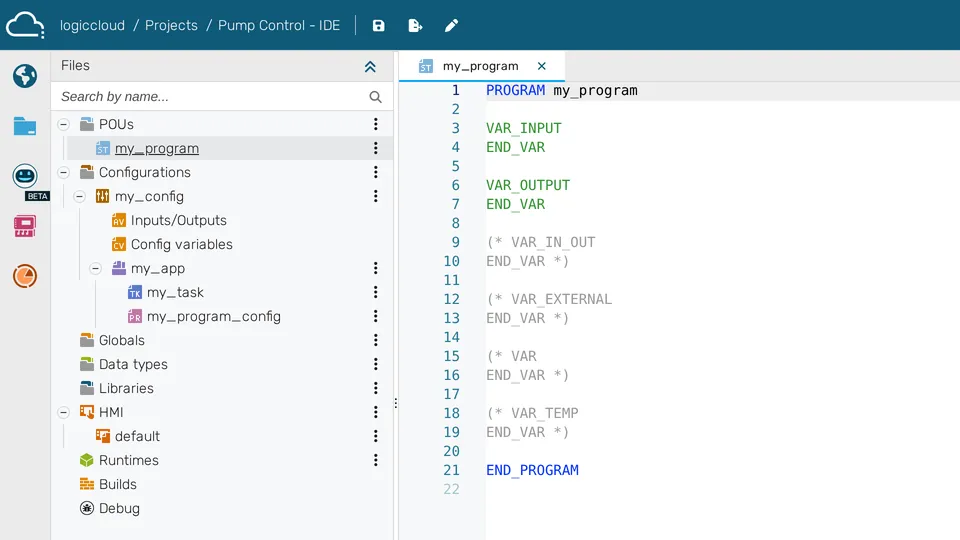
The variable declaration is in the upper area. Depending on which element is selected in the project tree, you can declare variables and make settings here. You can write your program code in the area below the variable declaration.
Terminal
Section titled “Terminal”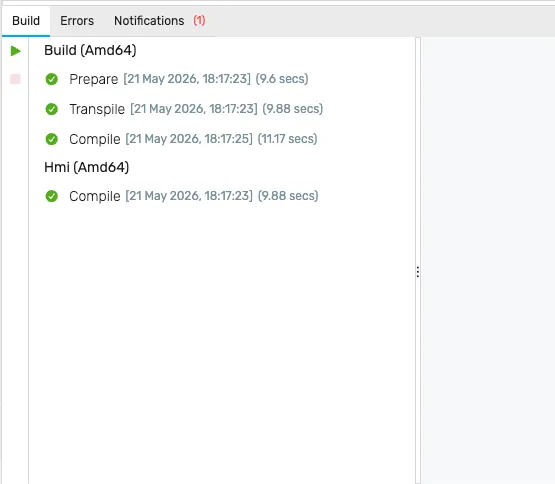
The terminal is in the lower area. Here you can see information about your builds.
Error handling
Section titled “Error handling”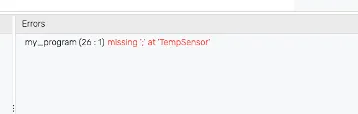
In the Error handling area, you can see any syntax errors in the program code and can jump directly to the corresponding location.
logiccloud Assistant
Section titled “logiccloud Assistant”An AI assistant (multi-provider: Anthropic, OpenAI, Google) that helps you with programming. An API key is needed to use this feature. In the organization settings the field where the key is entered is labeled Chat GPT API Key.
Customizing
Section titled “Customizing”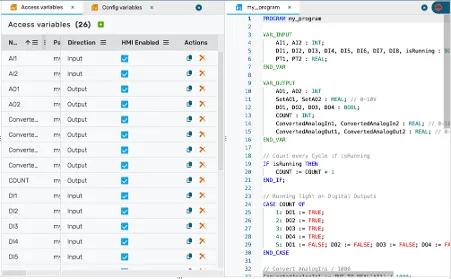
You can customize the user interface to make working with the logiccloud IDE easier and more efficient. You can arrange the tabs accordingly using drag & drop.
Shortcuts
Section titled “Shortcuts”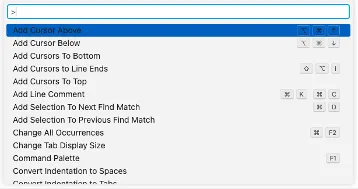
The IDE Editor supports a range of shortcuts that allow you to work faster with your program code. You can use the F1 key to open the overview of shortcuts. For example, you can comment out several lines, simply copy entire lines or make quick changes using search and replace.