

OPC UA Server Browsing
The logiccloud Control can be used to enable easier setup of the OPC UA client mappings using edge browsing functionality. This is done by installing a device-level service that connects to the OPC UA server and sends browsing information to the portal.
The portal can then be used to browse the OPC UA Server and select the variables to be mapped to the OPC UA client.
The browsing service can be enabled temporarily while the mappings are being set up and then removed to reduce the load on the device.
Enabling the browsing service
Section titled “Enabling the browsing service”To enable the browsing functionality, a dedicated browsing service must be installed on the edge device. This can be done from the logiccloud Control user interface by clicking on the pencil button next to the Device services table header:

A dialog will be shown where the browsing service can be enabled with a single click:
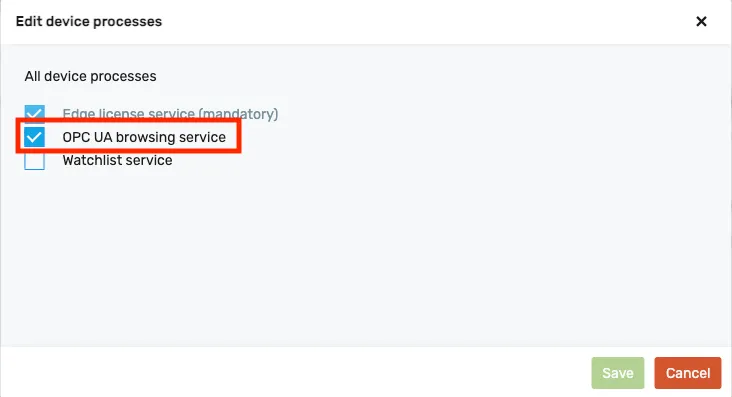
Once the changes are saved, the browsing service will be installed and started on the device. This will enable browsing functionality for this device.
Browsing the OPC UA Server
Section titled “Browsing the OPC UA Server”Once the browsing service is enabled, the OPC UA server can be browsed from the portal.
To do this, a runtime with an OPC UA client connection and configuration must be created (see Setting up the client connection for details).
Once the client configuration is added, the data layer can be browsed by clicking on the “Browse” button at the top:

This will open up the browsing dialog, and the device that has the browsing service can be selected:
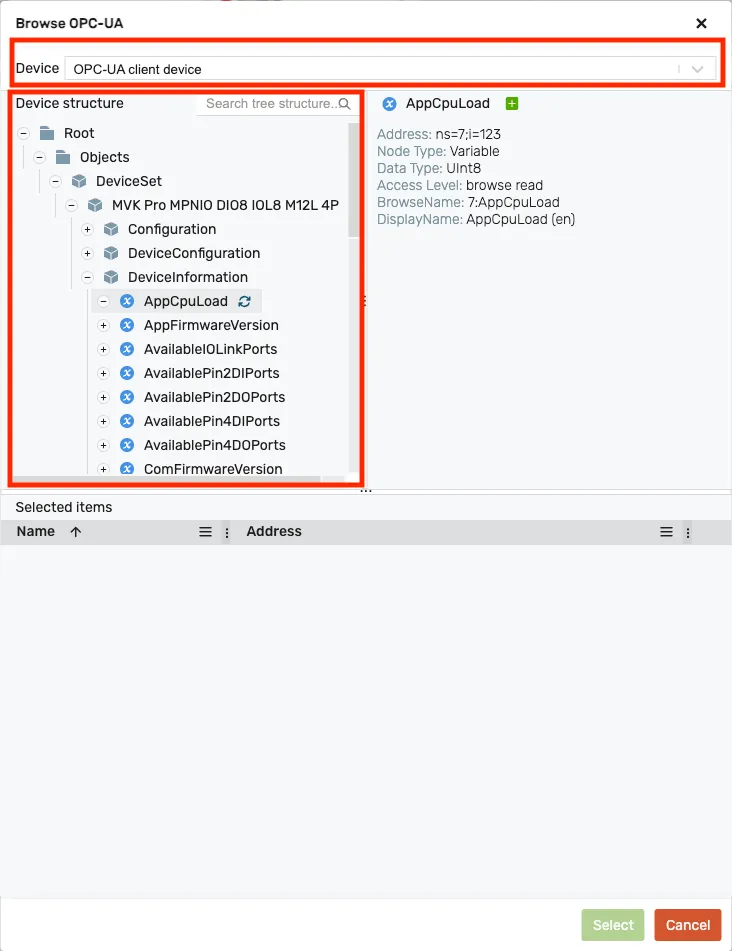
On the left side, the tree can be expanded to explore the OPC UA server tag structure. Upon reaching the desired node, selecting it becomes possible with a click.
If the node contains children, a table appears, listing all the selectable variables. Selection can be done by clicking the plus button next to each variable, or by using the plus button at the top to select all variables at once:
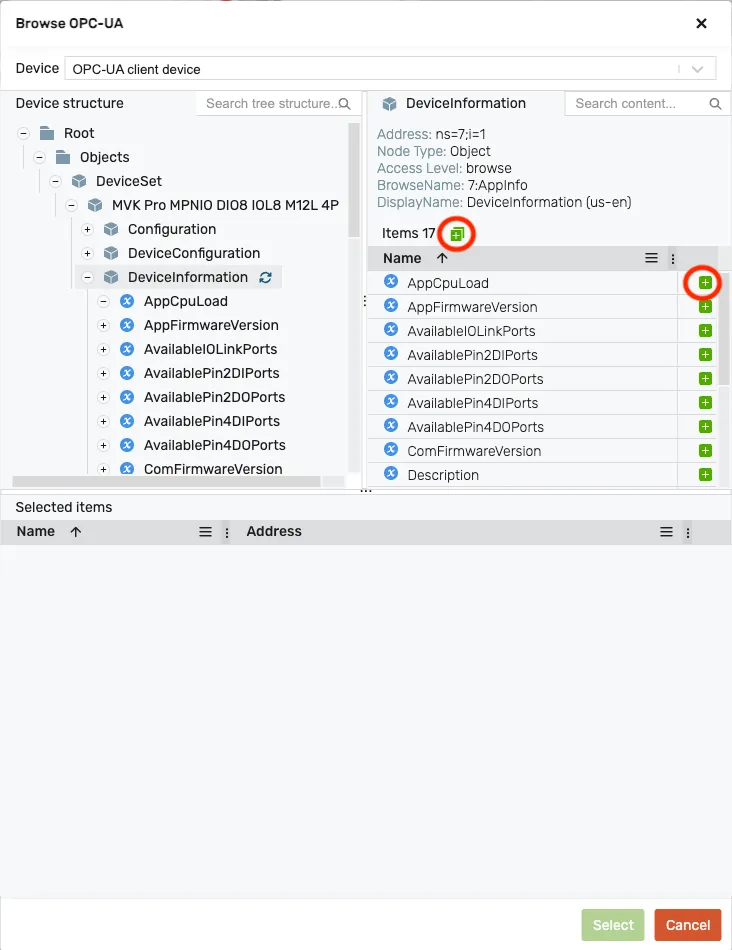
The “Selected items” table shows all selected variables, and also allows removing any variable not desired in the final selection.
Once all desired variables are added to the “Selected items”, clicking on the “Select” button at the bottom will add them to the client configuration:
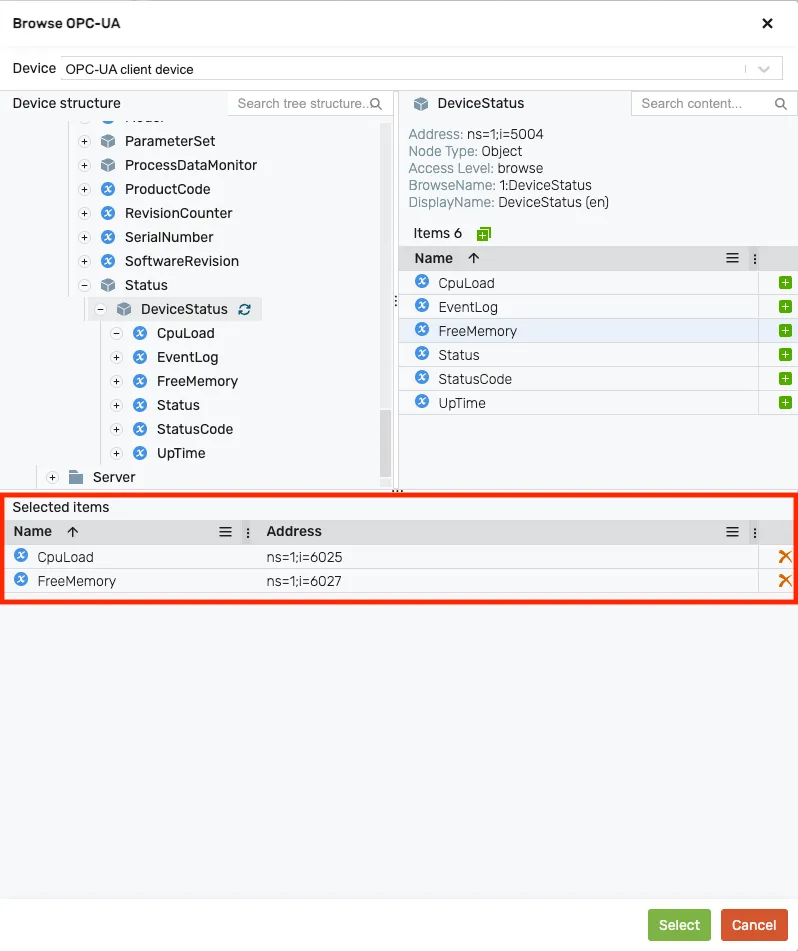
Once the selection is confirmed, the mappings will be populated with the selected items. If the selected items match existing access variables, they will be automatically mapped to them. Otherwise, the variables must be manually selected.
The type of the variables will be set based on the data type of the variable in the OPC UA server. Other OPC UA specific settings can also be adjusted, such as:
- the sampling interval
- the monitoring mode:
ReportingSamplingDisabled
- the queue size
- the discard oldest flag

Disabling the browsing service
Section titled “Disabling the browsing service”After the mappings are set up, the browsing service can be disabled to reduce the load on the device. This can be achieved from the logiccloud Control - Device services dialog by clicking on the pencil button and deselecting the browsing service. When the changes are saved, the browsing service will be stopped and removed from the device.