Runtime Control Overview
Manage the runtimes that execute a project: add a runtime, deploy a build, start and stop it, and delete it when finished.
Before you start
Section titled “Before you start”- Prerequisites: A built project (see PLC lifecycle).
- Required role/permission: Editor/Admin with rights to manage runtimes. Viewers can see runtime state but cannot start/stop/deploy/delete.
- Settings that affect behavior:
- Runtime target/platform — cloud vs gateway/edge decides where the project runs (see Gateway lifecycle).
- Deployed build — a runtime executes the build that was deployed to it; deploy a new build to update it.
- Licensing — starting a runtime can consume a license; an expired or missing license can prevent start or stop the runtime (see Licensing).
- Retained values — restarting/redeploying interacts with retained variables; see Reset retained values.
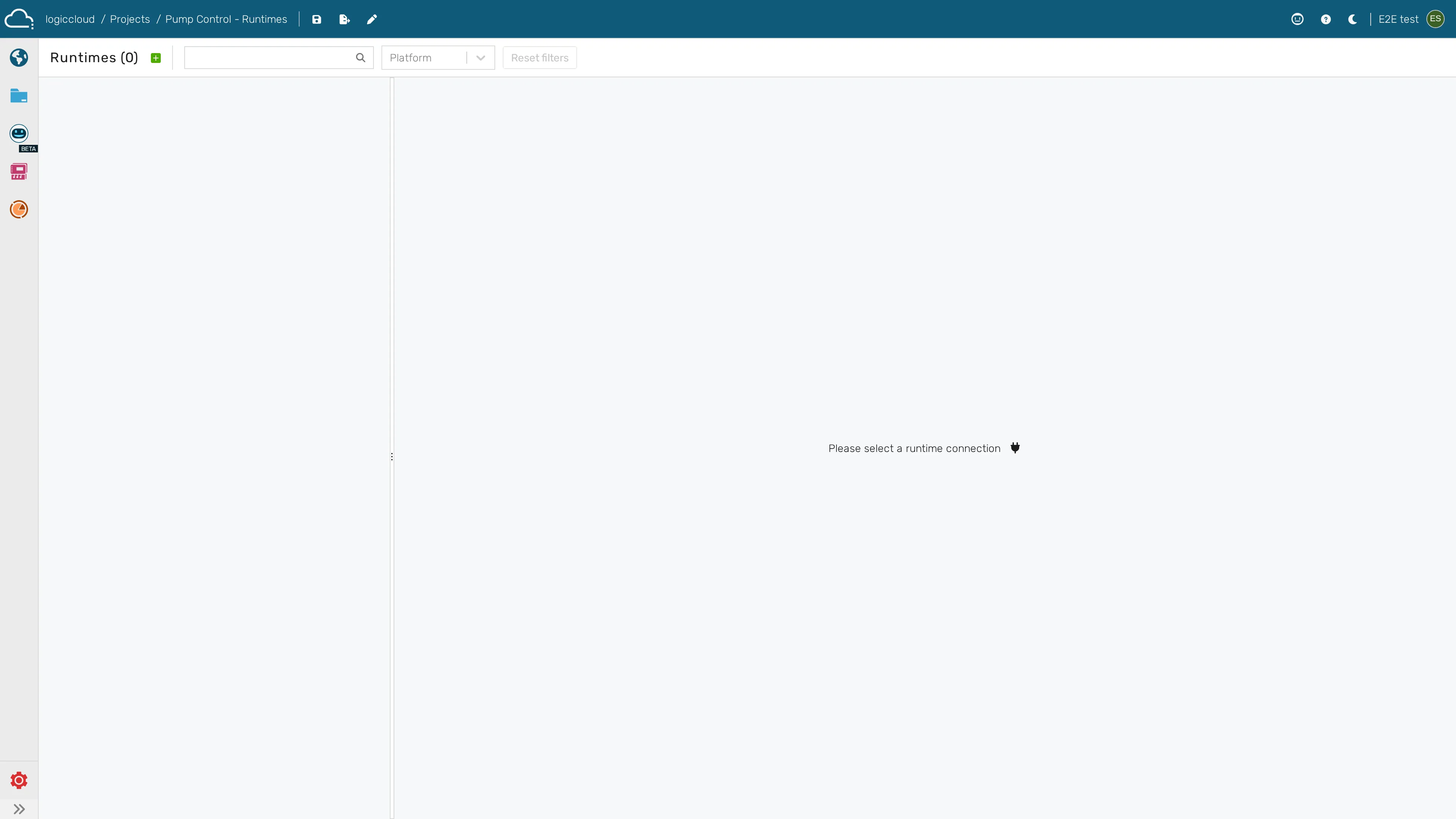
- Open the project’s Runtimes at
/portal/workspace/runtimes/:id. - Add a runtime and choose its target (cloud or gateway/edge device).
- Deploy the latest build to the runtime.
- Start the runtime; watch its status/health (see Health monitoring).
- Stop it when needed (see Stop a runtime).
- Delete a runtime you no longer need.
-
Open the project’s Runtimes view to add, deploy, start and stop runtimes