Create an organization (super admin)
Create an organization
Section titled “Create an organization”If you are signed in with a super admin account, you can create a brand-new organization (tenant) directly from the portal, without going through the public self-registration flow. New organizations are created empty — you then switch into them to configure users, devices, licensing, and HMI projects.
When to use this
Section titled “When to use this”- Onboarding a new customer who should not self-register.
- Setting up an isolated organization for a demo or trial.
- Re-creating an organization with a known name after a cleanup.
Create the organization
Section titled “Create the organization”-
Open the portal and sign in with your super admin account.
-
Open the Organization manager (
/portal/general/organizationManager). -
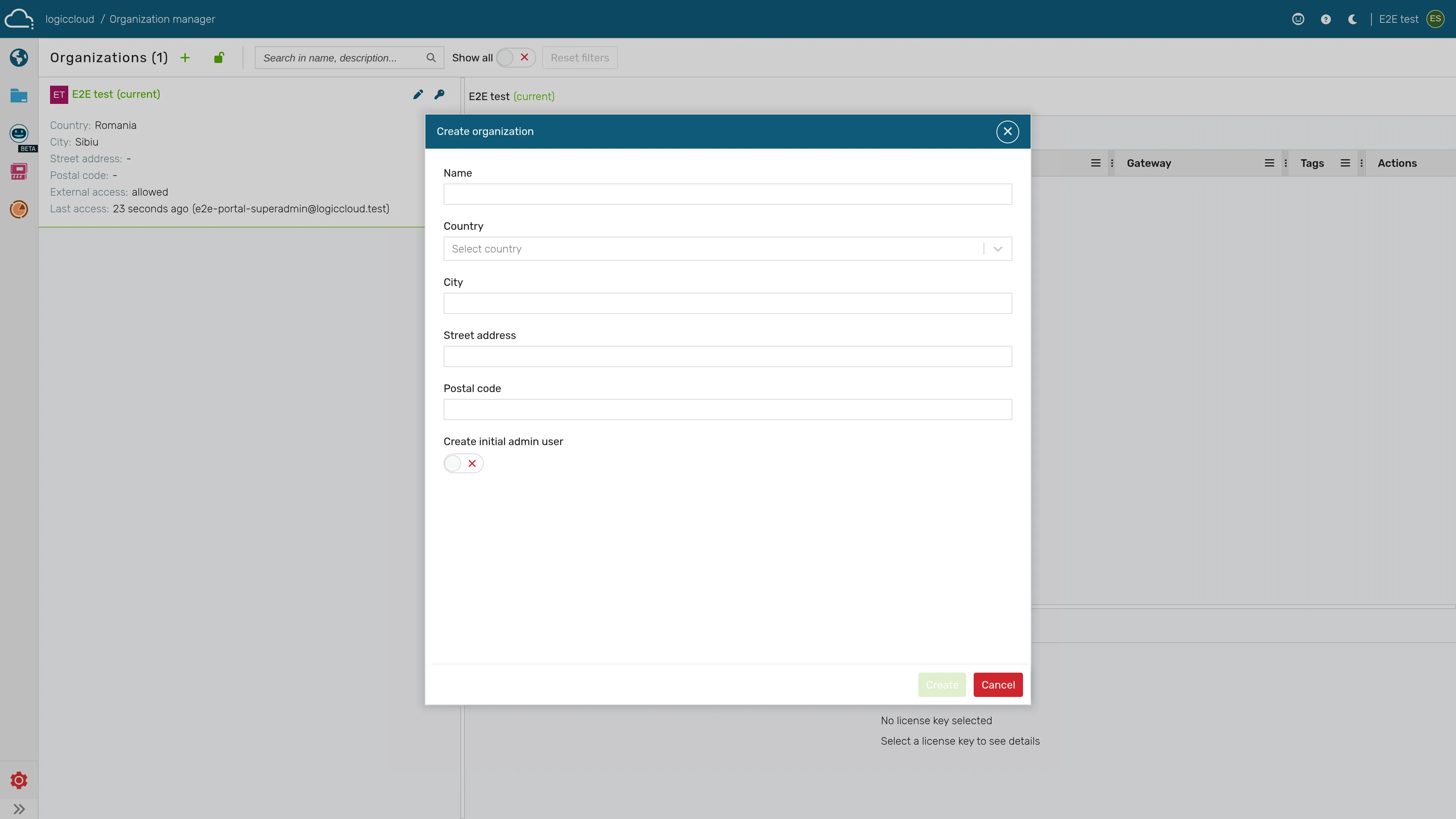
Start a new organization (the dialog is titled Create organization).
-
Enter the Name of the organization. You can optionally also fill in Country, City, Street address, and Postal code.
-
Wait for the name-availability check below the field — it shows Name available. or Name already taken. If the name is taken, pick a different one.
-
(Optional) Tick Create initial admin user and fill in the revealed Initial admin user fields:
- Username
- First name and Last name
There is no password field — when the organization is created, a password-reset email is sent to the new admin’s address.
-
Click Create.
The new organization appears in the list within a few seconds, with Remote access automatically enabled so you can switch into it right away.
What happens behind the scenes
Section titled “What happens behind the scenes”When the organization is created, the platform also provisions, in the background:
- The matching identity-provider group, so users can be assigned to it.
- Default device-service state for the new tenant.
- The default branding theme.
You do not need to take any additional steps — wait for the confirmation notification before switching in.
Switch into the new organization
Section titled “Switch into the new organization”- Open the organization switcher in the top navigation bar.
- Select the new organization from the list.
- The portal reloads scoped to that organization. Proceed with:
- Reviewing the default Settings.
- Inviting users from User Management.
- Approving devices under Approved Devices.
- Uploading HMI projects.