

Modbus TCP
logiccloud Control Runtimes on your Edge devices can be connected to your I/Os or other devices via Modbus. To do this, a new Modbus connection must be created and parameterized in the connection settings of the respective runtime.
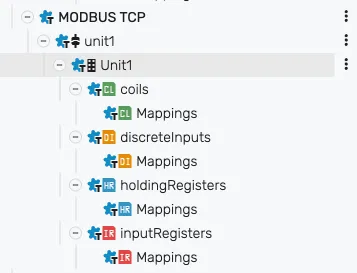
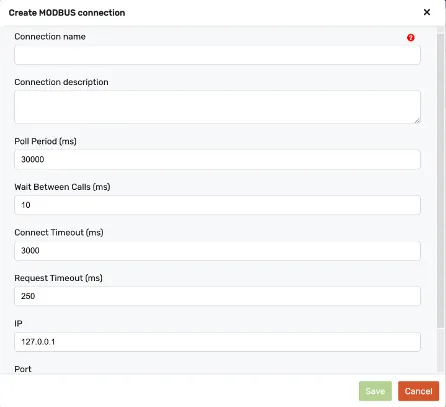
Select Add Modbus connection and enter all the necessary information such as the name, IP and port of the device. You can also adjust the poll period and make further settings.
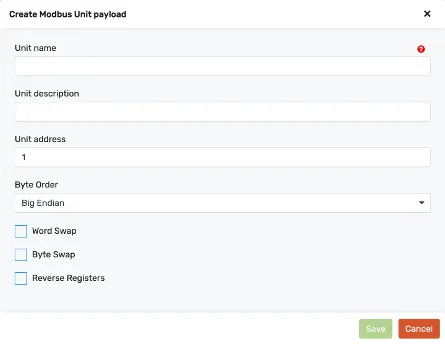
A unit can be created after the Modbus connection. To do this, right-click on the connection and select Add Modbus unit. Here you can specify the name, the address and the byte order.
Connection-level tuning
Section titled “Connection-level tuning”Beyond the name, IP, port and poll period, a Modbus TCP connection exposes the following tuning options:
Connect timeout: timeout (ms) when establishing the TCP connectionRequest timeout: timeout (ms) for an individual requestWait between calls: minimum wait time (ms) inserted between consecutive requests
To reduce the number of transactions, consecutive registers can be read or written in a single multi-register request:
Use read multiple: read several registers per request instead of one at a timeRead chunk size: maximum number of registers read in one multi-read requestUse write multiple: write several registers per request instead of one at a timeWrite chunk size: maximum number of registers written in one multi-write request
For the serial-line equivalent (baud rate, parity, RS-485 flow control), see Modbus RTU.
Mapping Modbus payloads and variables
Section titled “Mapping Modbus payloads and variables”You can map the process variables with Modbus registers. To do this, select the relevant registers, for example Input Registers, and create a new register mapping using the green + icon. You can then define the address, the process variable and the data type.
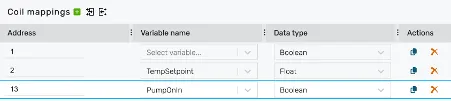
Address: Register addressVariable name: Variable from your programData type: data type of variable