

Runtimes
Once a project is built, a runtime can be created for that build. Runtimes live inside the project itself: open the project in the IDE, then expand the Runtimes node in the project tree (in the IDE sidebar this is the Project runtimes entry, between IDE and Project builds). To create a new runtime or update an existing one, work from this node using the actions described below.
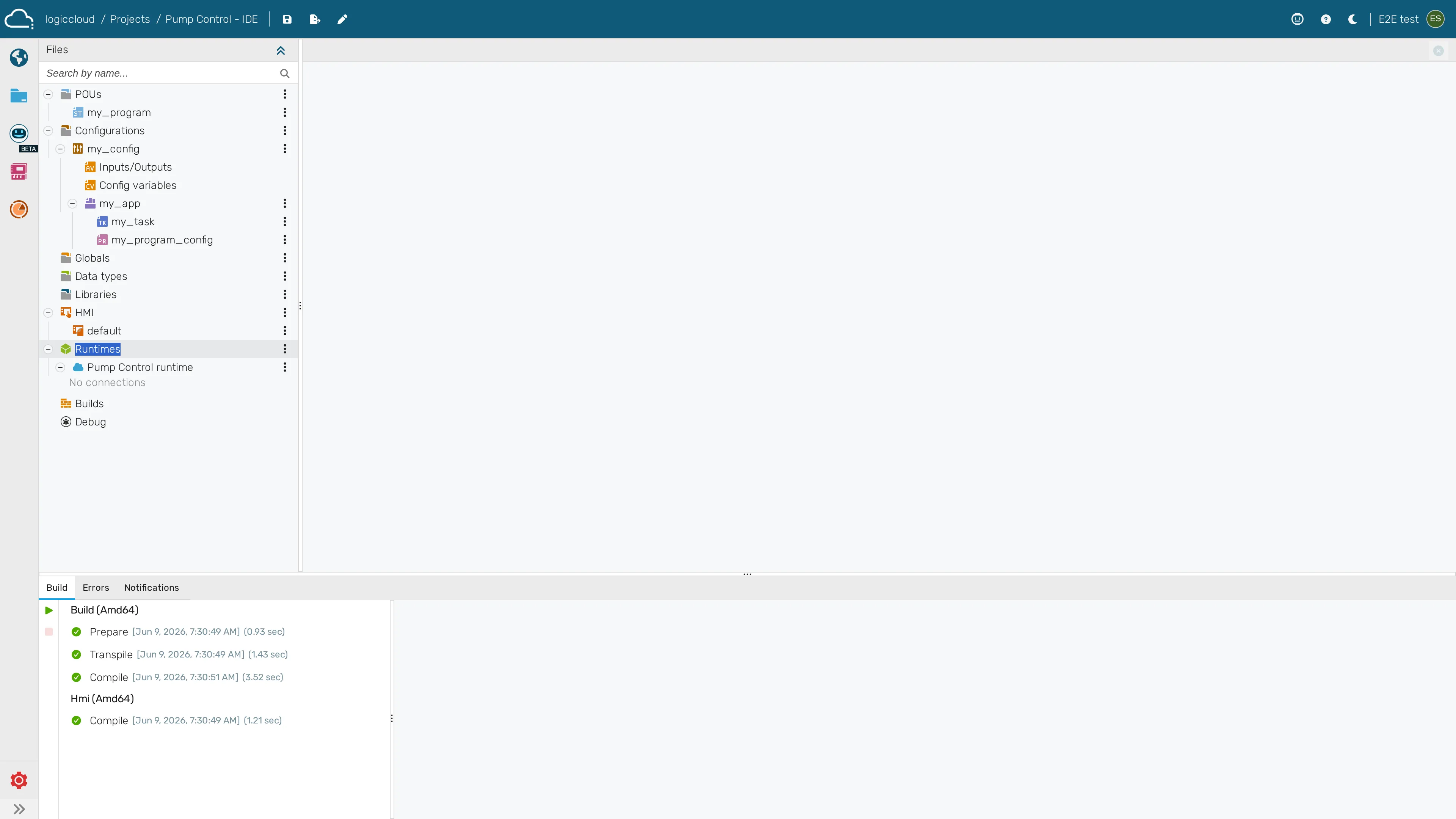
Managing runtimes
Section titled “Managing runtimes”In the IDE project tree, expand the Runtimes node. To create a new runtime, click the green + icon; to update an existing runtime, click the pencil icon on that runtime.
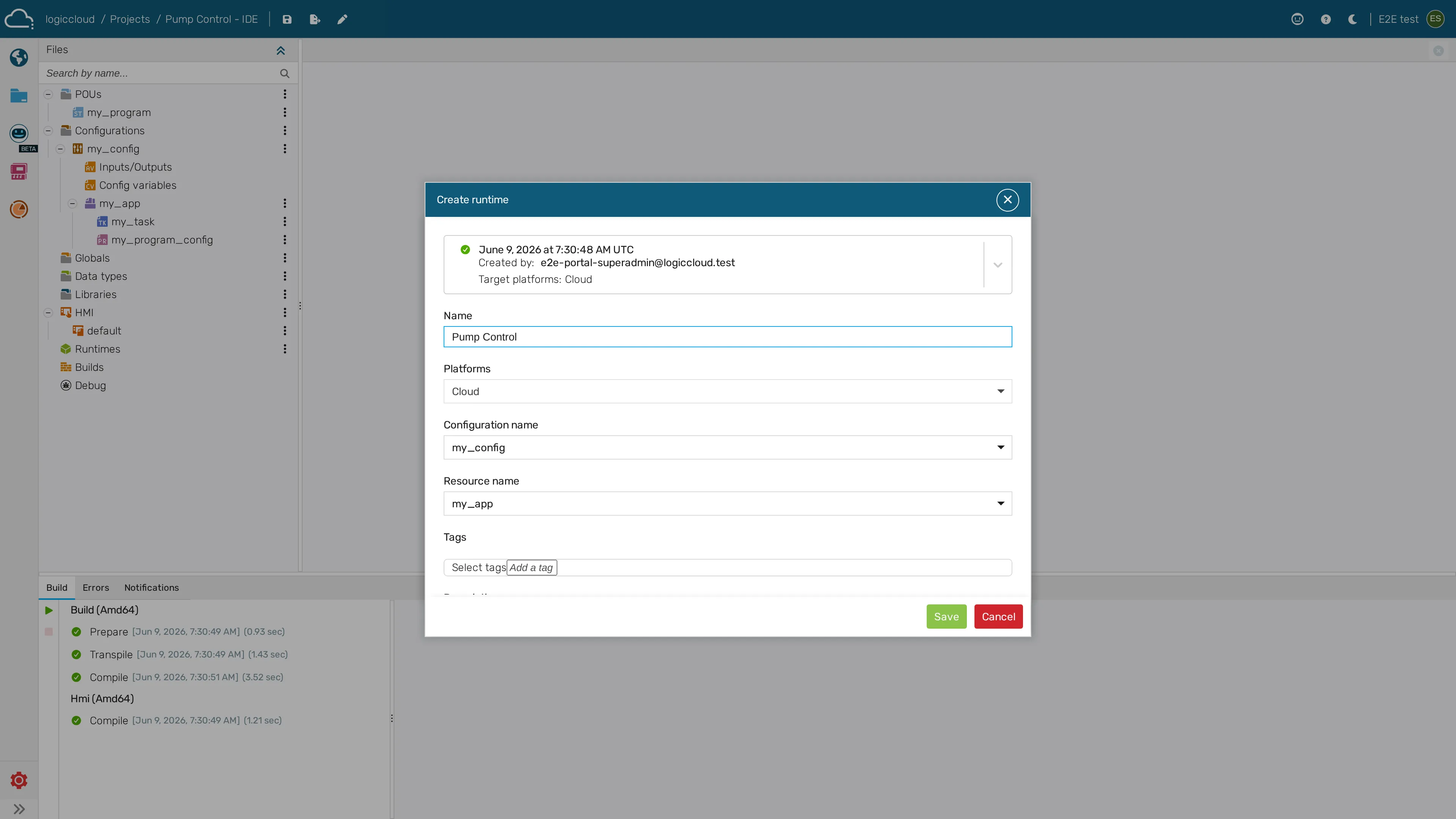
Runtime options
Build: The build which will be used.Name: Name of the runtime, can be any.Platform: Platform of the device, where the runtime will run on. Is the same as in the project configuration.Configuration name: Name of the configuration from inside the IEC program code defined in the project tree.Resource name: Name of the resource from inside the IEC program code defined in the project tree.Tags: Tags for additional information, can be any.Description: Runtime description, can be any.
Runtime status
Section titled “Runtime status”Once a runtime is provisioned to a device, the Portal reports its health with a process indicator (online / degraded / crashed). See Monitor runtime health for how to read these indicators and where to drill in.
Runtime operations
Section titled “Runtime operations”Runtime work happens in two places. Configuration (creating, editing, exporting, and wiring up connections) is done in the IDE project tree, under the Runtimes node. Operational actions on a provisioned runtime (start/stop, reset, health) are done from the device page once the runtime is running on a device.
Configure in the IDE:
- Configure connections — connect a runtime to services and hardware (MQTT, OPC UA, Modbus, and more).
- Export, import, or duplicate a runtime — including all connections and mappings.
- Export and import all connections — move just the connection set between runtimes.
Operate from the device page:
- Monitor runtime health — read the runtime status indicators.
- Stop and restart a runtime — halt the PLC without removing the project, including license-triggered stops.
- Reset retained values — clear
RETAINvariables so the runtime restarts clean.
Edge behavior:
- Faster HMI updates from edge runtimes — on-change updates to operator screens on edge devices.